
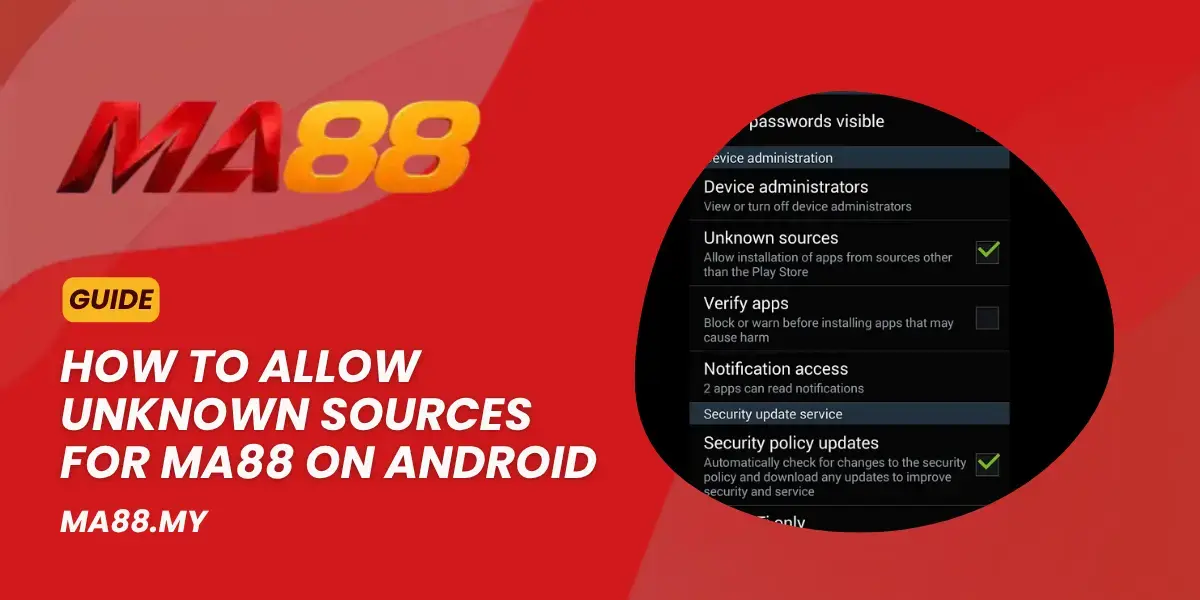
When you try to install the MA88 APK on your Android phone, you might see a message asking you to allow installation from an unknown source. On Android 8 and above, the Install unknown apps setting handles this by letting you grant permission to a specific app, like Chrome or your file manager, to install an APK.
You usually do not need to turn on a global “Unknown Sources” option. Android uses app-specific permissions when installing APKs. Menu names may differ by phone brand and Android version.
Before installing the MA88 APK, make sure you got the file from an official, trusted MA88 source. Google warns that apps installed from outside Google Play can create security and privacy risks, so check the source before changing the setting.

What “Unknown Sources” Means on Android
“Unknown sources” refers to apps that are installed from outside an official app store.
An APK is the file type Android uses to install apps. If you download the MA88 APK from a website, Android might block the installation until you give the app permission to install applications.
On newer versions of Android, this permission is called Install unknown apps. Instead of letting all apps install APK files, Android lets you choose which apps have this permission.
For example, if you use Chrome to download the MA88 APK, you may need to allow Chrome to install unknown apps. If you open the APK with a file manager, you may need to give that file manager permission instead.
Google recommends using trusted sources because applications downloaded outside Google Play may expose your device and personal information to additional security risks.
When MA88 Needs This Setting
You will need this setting if the MA88 Android app comes as an APK file instead of being installed through Google Play.
The permission may be required when:
- You download the APK through Chrome.
- You open the APK from your Downloads folder.
- You use a file manager to start the installation.
- Android displays an “Install unknown apps” or similar security message.
- Your phone blocks the installation because the source lacks permission.
Safety Checks Before Installing the MA88 APK
Changing this setting affects your phone’s security. Do a few checks before you continue.
Verify the APK Source
Only download the MA88 APK from a trusted source. Do not use APK files sent in unknown messages, from random file-sharing sites, or unofficial download links.
Just because a file name looks familiar does not mean the APK is safe or real.
Keep Google Play Protect Enabled
Google Play Protect checks applications for potentially harmful behavior. Google recommends keeping Play Protect enabled, including when you install applications from outside Google Play.
If Play Protect warns you about an APK, don’t ignore it. Review the warning and make sure the app is from a trusted source before continuing.
Check the App Permissions
After you install the app, check which permissions the MA88 app requests. Only allow permissions the app needs to work properly.
If the APK asks for access that does not seem related to what it should do, stop and look into it before going further.
Keep Android Updated
Make sure your Android device has the latest security updates before you install apps from outside the Play Store. Keeping your system updated helps protect against known security problems.
Do Not Disable Security Without a Reason
Do not turn off Android security features to install an APK. If your phone blocks the installation, find out exactly why before making changes.
How to Allow Unknown Sources on Android
On Android 8 and above, you usually need to give the app you use to open the APK permission to install unknown apps.
Android 8 and Newer: Install Unknown Apps
The menu may look slightly different depending on your phone.
- Open Settings.
- Use the Settings search and type Install unknown apps.
- Open Install unknown apps.
- Find the application you will use to open the APK.
- Select Chrome, Files, or another relevant application.
- Turn on Allow from this source.
- Return to the downloaded APK.
- Tap the file to start installation.
- Follow the Android setup prompts.
Samsung Galaxy
Samsung Galaxy phones provide an Install unknown apps setting for applications such as Chrome.
A common route is:
Settings → Security and privacy → More security settings → Install unknown apps
Then:
- Select the application that downloaded or opens the APK.
- Turn on permission to allow installations from that source.
- Return to the APK file.
- Start the installation.
Xiaomi, Redmi and POCO
Xiaomi devices may place this setting under Privacy or Special permissions.
Depending on the software version, look for:
Settings → Privacy protection → Special permissions → Install unknown apps
Then:
- Select the application that will open the APK.
- Enable Allow from this source.
- Return to the APK.
- Start the installation.
OPPO, realme and vivo
OPPO, realme, and vivo devices may use different versions of their Android-based software, so that the exact menu path may change.
Start by opening:
Settings
Then use the Settings search function and look for:
Install unknown apps or Unknown app installations
Select the browser or file manager you are using to open the APK, then enable the relevant permission.
If you don’t see the setting, check the phone’s Security or Special app permissions section.
Huawei and HONOR
Huawei and HONOR phones can use different software versions and app stores, so that menu names may vary.
Open Settings and search for:
Install unknown apps or Install apps from external sources.
Select the app that will open the APK and review the installation permission options.
If your phone uses a customized security system, follow the warning displayed on the device rather than relying on an older menu path.
How to Install the MA88 APK After You Allow It
After you grant the app permission to install unknown apps, go back to the APK file.
- Open Downloads or your file manager.
- Locate the APK.
- Tap the APK file.
- Read the installation prompt carefully.
- Select Install if you trust the file and source.
- Wait for Android to finish installing.
- Select Open or find the MA88 app on your home screen.
- Sign in or complete registration if required.
What to Do After MA88 Is Installed
After installation, you can check that the app works correctly before changing any further settings.
Open the MA88 App
Launch the app and confirm it opens without errors.
Look for Updates
For future updates, always use the official MA88 source. Do not install replacement APK files from other download sites.
Review Permissions
Go to your Android app permission settings and see what access the app has.
Remove any permissions the app doesn’t need to work normally.
Turn Off Install Permission
If you enabled Chrome or your file manager only to install the APK, consider turning that permission off after installation.
This reduces the chance of accidentally installing another APK from the same source later.
Common Problems and Fixes
“Install Blocked” or “For Security, Your Phone Cannot Install”
First, make sure the app opening the APK has permission to install unknown apps.
Go to:
Settings → Install unknown apps → Select your browser or file manager → Allow from this source.
On Samsung Galaxy devices, also check whether Auto Blocker is preventing the installation. Samsung specifically identifies Auto Blocker as a feature that can block apps from unauthorized sources.
If Android keeps blocking the file, don’t repeatedly bypass warnings. Verify the APK source and check whether the file is compatible with your device.
Chrome or Files Still Cannot Install MA88
If you enabled the permission but Chrome or Files still cannot start the installation:
- Confirm that you enabled permission for the same app that opens the APK.
- Close and reopen the APK.
- Check whether the APK downloaded completely.
- Check available storage space.
- Restart the phone.
- Download the APK again from a trusted source if the file may be incomplete.
Play Protect Warning
Google Play Protect can scan applications installed from outside Google Play and may warn you about potentially harmful software. Google recommends keeping Play Protect enabled.
If you receive a warning while installing the APK:
- Read the warning carefully.
- Confirm where the APK came from.
- Stop if you cannot verify the source.
- Do not disable Play Protect to force an installation.
Setting Turns Off After One Install
Android may manage unknown-app installation permissions on an app-by-app basis, and security software can also change how it handles installations.
If the permission disappears or is disabled after installation, go back to Install unknown apps and check the relevant app.
You do not need to keep the permission enabled when you are not installing an APK.
Android Says the App Is Not Allowed in Your Region or Device
Android’s installation rules can depend on the device, software version, and region.
In addition, Google has declared a developer-verification rollout beginning in September 2026 for certified Android devices in Singapore, Indonesia, Brazil, and Thailand. The first rollout covers participating app stores and is part of Google’s wider effort to verify app developers.
If Android says an app cannot be installed because its developer isn’t verified, follow the device’s security instructions rather than trying to bypass the protection unthinkingly.
Should You Leave Unknown Sources On?
No. You generally do not need to leave the permission enabled after installing the MA88 APK.
The safer approach is to allow the specific source only when needed. Once the APK is installed, return to the same Install unknown apps setting and turn off the permission for Chrome, Files, or whichever application you used.
This keeps Android’s normal installation restrictions in place for future APK files.
Thanks for reading our blogpost on How to Allow Unknown Sources for MA88 on Android